
Stop Using Claude Like It’s Just Another Chatbot
Are you starting fresh conversations every time? Copying the same brand guidelines over and over? Pasting code from yesterday’s chat because Claude doesn’t remember? If yes, you’re probably losing about 5 hourse very week.
Here’s what most people do: They treat AI like Google. Ask something, get an answer, close the tab. Everything vanishes. It’s like hiring someone smart to help you, but then letting them go at 5 PM and bringing in someone completely new the next morning who knows absolutely nothing about what you’re working on.
Sound frustrating? It is.
But here’s the good news: You can change this starting right now.
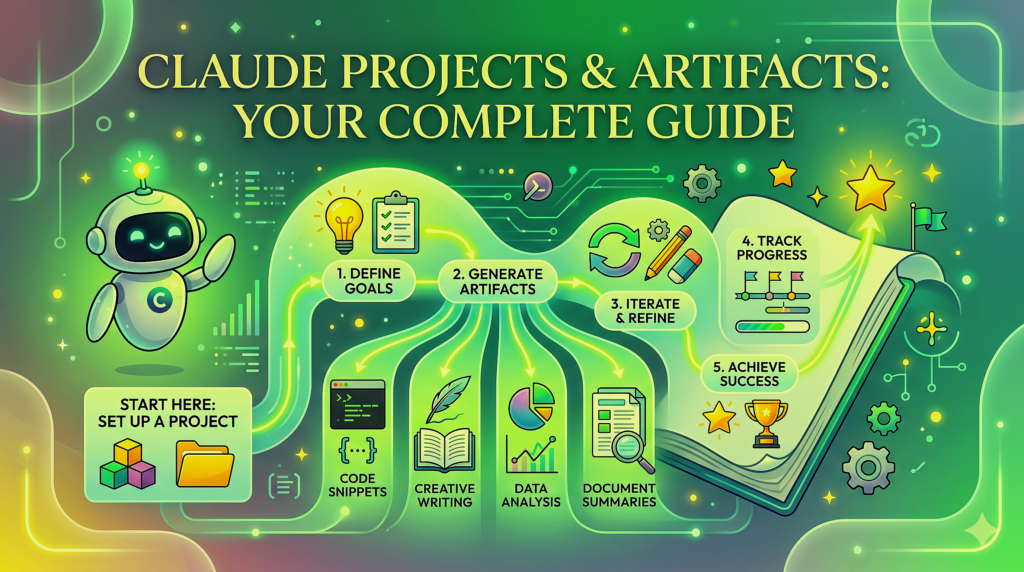
Claude has two features called
Projects
and
Artifacts
that completely change the game. Instead of just chatting,you can actually build things. You create a workspace where Claude remembers your style, stores your files,and shows you visual results instantly.
This guide will walk you through everything. By the end, you’ll go from being someone who uses AI occasionally to someone who uses it like a pro.
🏗️
The Real Problem: Why AI Feels So Repetitive
Ever notice how using AI can feel like groundhog day?
Every chat starts from zero. Even the smartest AI models forget everything from your last conversation. This creates real problems:
Problem 1: You Keep Repeating Yourself
Every single time, you explain your writing style. You describe your project again. You tell it what you need.
Problem 2: Long Conversations Get Messy
After 20 messages back and forth, the AI starts forgetting what you talked about at the start. Context gets lost.
Problem 3: Everything’s Just Text
You ask for a website design and get a wall of code in the chat. You can’tsee it. You can’t test it. You just stare at lines of text.
Claude solved these problems with two simple tools:
Projects
= The memory system (stores your files and remembers your preferences)
Artifacts
= The visual workspace (shows you actual documents, apps, and designs)
Let me show you how they work together.
🧠 Part 1: Understanding Claude Projects
Think of a Project as your own dedicated room.
Instead of having one messy conversation where you jump between recipes, work emails, and coding help, a Project keeps everything organized. It’s a container that holds your files, your instructions, and your conversations about one specific thing.
The Three Things Every Good Project Needs
Want your Project to actually work well? You need all three of these pieces:
Piece 1: Your Knowledge Base
This is where you upload files. PDFs, text documents, spreadsheets, code files—whatever Claude needs to know about.
You can upload up to 500 pages worth of content
Claude reads everything before it answers your first question
Piece 2: Your Custom Instructions
This tells Claude how to act in this specific Project. You’re giving it a roleand personality.
Example: “You’re my editor. Keep sentences short. Don’t use business jargon.”
Piece 3: Your Conversations
This is where you actually chat. But here’s the magic: Because you already set up parts 1 and 2, you don’t need to explain everything each time. Just say “Review this draft” and Claude already knows your rules.
🛠️
Part 2: Understanding Artifacts
If Projects are the brain, Artifacts are the hands that actually build things.
Before Artifacts existed, if you asked Claude to write something or create a chart, it just dumped everything into the chat. You’d scroll up and down trying to find what you needed. Messy and annoying.
Artifacts changed this completely.
Now when Claude creates something substantial—like a document, code, or a design—it opens a separate window on the right side of your screen. Your conversation stays on the left. Your creation appears on the right.
What Can You Actually Build With Artifacts?
Code That Works
Claude writes React or HTML code, and you see a live preview. Build calculators, landing pages, or simple web apps.
Clean Documents
Get formatted documents for blogs, memos, contracts, or newsletters. No more messy copy-pasting.
Visual Diagrams
Create flowcharts, mind maps, organizational charts, or any kind of visual diagram you need.
Interactive Elements
Build clickable buttons, forms, dashboards, or app prototypes.
Here’s what makes this powerful: You can talk to the Artifact. Say “Make that button bigger” or “Change the second paragraph to sound friendlier” and Claude updates it instantly. No copying, no pasting, no hassle.
Real Examples: How People Actually Use This
Forget theory. Let’s look at three ways real people use Projects and Artifacts every day.
Example 1: Your Personal Writing Assistant
Tired of rewriting emails and posts from scratch every time?
How to set it up:
Create a new Project called “My Writing Helper.”
What to upload:
Your 5 best articles or emails (so Claude learns your style)
A list of words and phrases you hate (like “synergy” or “game-changer”)
Set this instruction:
“You’re my editor. Write like the examples I uploaded. Keep it punchy and direct.”
How to use it:
Just type: “Write a LinkedIn post about my trip to Japan.”
What happens:
A clean document appears on the right. The post uses your humor and your sentence style. It doesn’t sound robotic. It sounds like you wrote it on a really good day.
Example 2: Build Apps Without Coding
Got an idea but can’t code? Build it anyway.
How to set it up:
Create a Project called “App Builder.”
What to upload:
A screenshot of any design you like (for color ideas)
Set this instruction:
“Build interactive tools using React and Tailwind CSS. Make them look modern and simple.”
How to use it:
Type: “Build a Pomodoro timer that tracks my work breaks. Make the background red when time runs out.”
What happens:
A working timer shows up on the right. You click Start. It counts down. It works. You just built software using plain English.
Example 3: Turn Notes Into Visuals
Tired of reading pages and pages of text?
How to set it up:
Create a Project called “Visual Study Helper.”
What to upload:
Your class notes or a complicated PDF report
Set this instruction:
“Turn complicated topics into simple visual diagrams.”
How to use it:
Type: “Create a flowchart showing how a bill becomes a law using my notes.”
What happens:
A clean diagram with arrows appears instantly. You understand the process by looking at it instead of reading 10 pages.
The 5 Mistakes That Kill Your Results
I’ve watched people struggle with Projects. They usually make these mistakes. Don’t be that person.
Mistake 1: Uploading Too Much Stuff
Don’t dump 50 random files “just in case.” If you upload your lunch menu from 2019, Claude gets confused. Only upload what matters right now.
Mistake 2: Reading the Chat Instead of the Artifact
When Claude builds something, don’t squint at the tiny code in the chat window. Look at the big preview window on the right. That’s your actual workspace.
Mistake 3: Ignoring Security
Never upload files with credit card numbers, passwords, or personal addresses.Treat your Project like a work computer—reasonably secure, but don’t put your deepest secrets there.
Mistake 4: Being Too Vague
Having a Project doesn’t mean you can be lazy with instructions. You still need to clearly explain what you want.
Mistake 5: Never Updating Your Files
Your life changes. If your Project still has your resume from three years ago, the results will be outdated. Update your files at least once a month.
My Personal Workflow (What I Actually Use Daily)
Let me show you what I’ve automated in my own life:
My Writing Assistant (Saves Me 3 Hours Per Week)
Setup: I loaded my 10 best emails and a list of words I never use.
What I do: “Draft a LinkedIn post about my Japan trip.”
What I get: A perfectly formatted post in my exact style appears in the Artifact window. I don’t edit a single word.
My App Builder (Saves Me $500 Every Month)
Setup: Instructions to build React components with Tailwind CSS.
What I do: “Build a Pomodoro timer.”
What I get: A working timer app appears in seconds. I never wrote one line of code.
My Visual Learning Tool (Saves Me 2 Hours of Reading)
Setup: Loaded with PDF reports and messy notes.
What I do: “Show me how a bill becomes law as a flowchart.”
What I get: A clean diagram that makes everything clear instantly.
Five Time-Wasters and How to Fix Them
Time-Waster 1: Keeping Old Files
The problem: Uploading 50 files you might need someday. The solution: If a file is from 2019, delete it. Only keep current information.
Time-Waster 2: Missing the Visual
The problem: Trying to read everything in the narrow chat. The solution: Always ask for an Artifact. Say “Put this in a window.” Force the visual display.
Time-Waster 3: Risking Your Privacy
The problem: Uploading sensitive data like credit card details. The solution: Treat Projects like your work laptop. Keep it secure but remove any personal information first.
Time-Waster 4: Lazy Instructions
The problem: Thinking “I have a Project, so I don’t need good prompts. “The solution: Projects give context, but Claude can’t read your mind. Be specific about what you want.
Time-Waster 5: Old Information
The problem: Your Project has a three-year-old resume. The solution: Set a monthly reminder: “Update AI Project Files” on the first of every month.
Advanced Tips for Power Users
Want to go deeper? Here’s how.
Custom Instruction Templates You Can Copy
The real secret to great Projects is the Custom Instruction. Don’t leave it blank. Here are three you can copy and paste today:
The Tough Editor (For Writing)
“You’re a demanding editor. Rate every draft on a scale of 1-10. Tell me exactly which sentences are boring and remove them. Don’t worry about being nice. Focus on short, powerful writing.”
The Challenger (For Making Decisions)
“Whatever idea I share, give me three reasons it might fail. Help me see what I’m missing. Point out assumptions I’m making without realizing it.”
The Simple Explainer (For Learning)
“You’re a teacher who explains things to a 12-year-old. Use examples with food, cars, or sports. Never use complicated terms.”
Your Challenge This Week
Build one Project. Just one.
Here’s how:
1.
Open Claude
2.
Click “Projects” then “Create Project”
3.
Upload one thing you care about (your resume, favorite recipes, business plan)
4.
Ask Claude to build one Artifact
Once you see that side window light up with something you created in seconds, you’ll understand why this is different. You won’t want to go back to regular chats again.
The difference between someone who uses AI casually and someone who uses it like a pro isn’t talent or technical skill. It’s knowing about Projects and Artifacts. Now you know. Go build something.AI Thermodynamics Hack: 100% Accuracy Guaranteed? The Truth Every Student Needs